Overview
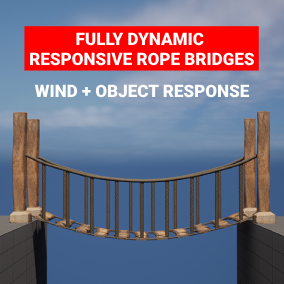
The Dynamic Rope Bridge is a revolutionary digital asset that dynamically responds to players, environmental elements like wind, and objects on its path. Designed for versatility, it's modular, allowing customization in length and appearance with any meshes.
It's optimized for high performance with a special sleep system for enhanced efficiency. Easy to integrate, it comes as a single drag-and-drop blueprint.
Features
Ready to Use
Drag-and-drop solution. Customize your details and you're done. No complex setup required.
Dynamic Response
Responds dynamically to players or objects. Looks organic and realistic when characters run across it.
Optional Wind System
Add additional atmospheric movement with the optional wind system, at a small performance cost.
Performance Optimized
Optimized as much as possible. Just 1 single physics component, the rest uses ISMs, spline meshes, or static meshes.
How to Use
Installation & Setup
- 1. Install the pack from the Unreal Engine Marketplace
- 2. In the content browser, navigate to RopeBridges/Blueprints
- 3. Drag the Rope Bridge blueprint into your world
- 4. Position it at the start of your bridge location
- 5. Select the 3D Vector widget (purple diamond) and move it to the end of your bridge
⚠️ Note: Not all elements of the bridge will draw in the editor. The bridge only supports physics and some other features at runtime.
Configuration
The details panel contains the most common attributes to customize. Most of these have tooltips that will explain more when you mouse over them.
Drop down the "Posts and Ropes" section to customize those specific elements.
Mesh Customization
Bridge Slats
Bridge slats can be customized in the details panel and support random meshes. Add one or more meshes to the Bridge Mesh Slat List.
Orientation Guidelines:
- • The bridge is X forward
- • On a bridge slat, the Y axis points down the board
Re-orientation Tip:
Use UE5 modeling tools to re-orient your axis: Drag your mesh into the world, zero its transform, rotate 90° in Z for correct bridge orientation, then use the "BakeRS" tool to burn that rotation into the mesh.
Posts
Posts can be set directly in the details panel. Their position matches the lower rope offsets.
⚠️ Material Note: Posts use an Instanced Static Mesh Component, so your material will need ISM usage added if it shows up untextured.
Rope Customization
The rope is set within the blueprint and is not exposed in the details panel. This is because it uses a Spline Mesh Component, making it ideal to stick with the default 1cm_Tube mesh.
Advanced Customization:
- 1. Open the
Update Ropefunction (singular, not Update Ropes) - 2. Find the
Add Spline Mesh Componentnode - 3. Select it and override as needed
- 4. Update material usage to include "Spline Mesh Component" if changing materials
Performance Considerations
Optimization Features
- • Single Physics Component: Only one physics component handles all bridge dynamics
- • Efficient Rendering: Uses ISMs, spline meshes, and static meshes for optimal performance
- • Sleep System: Special sleep system enhances efficiency when bridge is not in use
- • Modular Design: Customizable length and appearance without performance penalties
📹 YouTube Videos Coming Soon
Detailed video tutorials covering setup, customization, and advanced usage will be available soon.
Need Help?
For additional support, questions, or feature requests, don't hesitate to get in touch.
Contact Support